Saturday, 24 February 2018

HOW TO REMOVE MULTIPLE SCOPE ON DHCP USING POWERSHELL


HOW TO REMOVE MULTIPLE SCOPE ON DHCP USING POWERSHELL


Hey all,
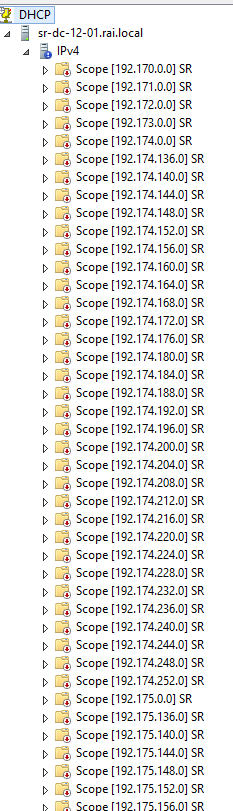
I accidentally created lots of scope by mistake !!
it was not possible to delete all of the scope physically so I used simple poweshell script to do my job.

Edit as you according to your needs

For ($i=1; $i-lt 255;$i++)
{
$i= $i + 1

$scpID = "192.$i.0.0"
Write-host $scpID 

Remove-dhcpserverv4scope -computername "youcomputername.domain.local" -scopeid $scpID

}


Edit the IPaddress range and your FQDN name.
Save the above on notepad using .ps1 extenstion.

Wednesday, 21 February 2018

GROUP POLICY TO LOCK USER SCREEN AFTER INACTIVITY (IDEAL TIME)

HOW TO : 

GROUP POLICY TO LOCK USER SCREEN AFTER INACTIVITY (IDEAL TIME)


Server:Windows Server 2012 
Client: Windows 7


Today one of my client asked me if their computer could be auto locked after certain amount of ideal time. So here is what I did to apply the settings.I have seen people using task scheduler and batch file to do this but I find this much more easier to apply.

FIX :


1. On your Domain Controller, Open Group Policy Management console 
( Windows + R and "gpmc.msc" )
2. Create Group policy using your desire name

3. Edit your policy
4. Navigate to User Configuration \ Policies \ Control panel \ Personalization 


5. Edit the following 4 settings

Enable screen saver - Enable
Password protect the screen saver - Enable
Screen saver time out - Enable, Your desire ideal period
Force specific screen saver - Enable , blank path

6. Apply the Group policy to your desire Organizational Unit

Good Luck !!


Wednesday, 31 January 2018

CONVERT NETWORK LOCATION TYPE TO PRIVATE ON WINDOWS SERVER 2012

HOW TO : 

CONVERT NETWORK LOCATION TYPE TO PRIVATE ON WINDOWS SERVER 2012


One of my client host server(Non-domain) was on Public Network location type which restricted me from remote login to the server. When I checked the network setting it was on public network. Changing type from public to private was not as easy windows 7.

So if you are stuck as I was, here is the fix for that.

FIX :

1. Login to your server
2. Open local group policy editor ( Windows + R and "gpedit.msc" )
3. Navigate to the following path


Computer Configuration/Windows Settings/Security Setting /Network List Manager Policies


4. Select your connected netowork
5. On the Network location tab change it into Private


Tuesday, 30 January 2018

DISK MANAGEMENT : THERE IS NOT ENOUGH SPACE AVAILABLE ON THE DISK(S) TO COMPLETE THIS OPERATIONAL.

ERROR  : 

DISK MANAGEMENT : THERE IS NOT ENOUGH SPACE AVAILABLE ON THE DISK(S) TO COMPLETE THIS OPERATIONAL.


On windows server 2012


Since my virtual server was running low on disk space, I had to increase the disk volume from the Hyper-V manager to my server. While expanding the volume, I had the error and here is what I did to resolve it !!

FIX :

1. Open Disk Management ( Windows + R and "diskmgmt.msc" )
2. Click on  Action then Rescan Disks


3. Extend your volume as desire.

Monday, 29 January 2018

CREATE GROUP POLICY TO INSTALL WIFI SSID (PROFILE)

HOW TO : 

CREATE GROUP POLICY TO INSTALL WIFI SSID (PROFILE) or
CREATE A GROUP POLICY TO DEPLOY A COMPANY WIRELESS NETWORK


on Server Window server 2012 / R2 to Windows 7 / 8 / 10

SOLUTION:
1. On the test laptop key in the wifi password manually.
2. After you have connected the test laptop. Open Command prompt with administrator  privileged 
3. On Command prompt type in the following 

netsh wlan show profiles

4.  The above command will show you your recent added SSID
5.  Type in the following command to export the SSID setting 

netsh wlan export profile "Above SSID Name" folder=c:

6. This will export an XML file to your C drive.
7. Now copy your XML file to your server(shared location). I usually do mine under

\\yourdomain.name\NETLOGON
eg \\Easy.local\NETLOGON

or copy to your company's script repository (for security)

8. On the notepad, save the following on .Bat extension

netsh wlan add profile filename="\\yourdomain.name\NETLOGON\wifi filename.xml" user=all

9. Save the both files at same location.

10. On your Domain computer open Group policy management , Create a policy with a desire name 

11. Edit the following setting on the group policy

Computer Configuration \ Policies \ Windows settings \ Scripts (Startup/shutdown)

12. Right click and Properties on start up icon

13. Click on Add , and locate your previous bat file . Make sure you use above UNC path (step 7) to navigate your bat file.

14. Save and link it to your desire OU.

GOOD LUCK!!


Sunday, 28 January 2018

WINDOWS SERVER UPDATE SERVICES (WSUS) ERROR : CONNECTION ERROR

ERROR:


WINDOWS SERVER UPDATE SERVICES (WSUS) ERROR : CONNECTION ERROR


on Windows Server 2012 / R2


An error occurred trying to connect the WSUS server. This error can happen for number of reasons. Check connectivity with the server, Please contact your network administrator if the problem persists.


If you have tired and failed reseting the server node, Try repairing your Wsus

FIX:

On your server where WSUS is installed.
1. Open Command line using Administrator Privileged.
2.  On the Command prompt type in
               CD \
               CD "C:\Program Files\Update Services\Tools" 
               wsusutil postinstall -servicing